
+ 65 6265 0666
  • News Centre
    • Press Releases
    • Feature Stories
    • Port Circulars
    • Corporate Social Responsibility
  • JP Connectivity
  • Pass Application
  • JP-Online
  • Tender/RFx
Jurong PortJurong PortJurong PortJurong Port
  • Why Us
  • Multipurpose Terminals
    • General and Bulk Cargo
      • Project Logistics Hub & Projects Showcase
      • Offshore Marine Centres
      • General / Break Bulk
      • Ro/Ro
      • Dry and Liquid Bulk
    • CONSTRUCTION
      • RMC Ecosystem
      • Cement Terminal
      • Steel Terminal
    • LIGHTERAGE
      • Lighter Terminals
    • Containers
      • Conventional Containers
  • Energy Terminals
    • Jurong Port
      Tank Terminals
    • Jurong Port
      Universal Terminal
  • About Us
    • Overview
    • International Presence
      • China
        • Rizhao Port Jurong Terminals (Rizhao)
      • Indonesia
        • Marunda Center Terminal (Jakarta)
    • Awards & Milestones
    • Leadership
    • Business Partnerships & Licensed Stevedoring Companies
    • JP Schedule of Rates
    • Port Layout
    • Environmental, Health & Safety
    • Sustainability
    • Port Rules & Regulations
    • Whistleblowing Policy
  • Join Us
    • Job Opportunities
    • Internship and Scholarship
  • Contact Us
    • Contacts & Locations
    • Enquiries
  • FAQs

FAQs

Passes & Permits

  • Safety & Security
  • Accounts
  • Passes & Permits
  • Businesses / Services
  • Storage
  • Operations
  • Documentation
  • Invoicing & Payments
  • Stowage Requirements
  • Mobile Apps
Home FAQs Passes & Permits

Pass Application

Pass Office Operating Hours

e

Will the Pass Office continue to operate 24 hours?

No. The Pass Office currently operates from 7.30am to 7.30pm, Monday to Sunday, including Public Holidays. Night shift operations have ceased since 1 September 2026.

The JP Pass chatbot remains available 24 hours daily. Please note that some services and booking slots may have different operating hours:

Service Type Operating Hours
JP Pass Chatbot 24 hours daily
Live Agent Support via JP Pass Chatbot Monday to Friday (excluding Public Holidays):
9.00am to 5.00pm
Self-service Biometric Enrolment (via kiosk) Hourly booking slots are available from 7.00am – 7.59am to 6.00pm – 6.59pm, subject to availability.
Over-the-counter applications1 Monday to Sunday (including Public Holidays):
7.30am to 7.30pm. Please arrive by 7.00pm if you require our services.


1Available for foreign applicants who are unable to apply through the JP Pass portal, company profile creation, and fine payment services that have not yet transitioned to the Public Payment Page (PPP). Over-the-counter applications will be discontinued once PPP is fully rolled out and additional country codes are enabled.

e

What should I do if I require assistance after Pass Office operating hours?

For JP Pass-related enquiries, contact the JP Pass chatbot, which is available 24 hours daily. If your enquiry requires Live Agent Support, please contact the chatbot during Live Agent Support hours, Monday to Friday, excluding Public Holidays, from 9.00am to 5.00pm.


JP Pass

e

What is JP Pass?

What is JP Pass?
The JP Pass is required for all port users to enter the port. Passes are issued based on the required duration of access, with validity ranging from 1 day to 3 years, depending on the user’s work assignments.

Who is eligible to apply for the JP Pass?
The JP Pass is available to users who are sponsored by a JP credit account holder.

How can I apply for JP Pass?
Applications for the JP Pass can be submitted through the mobile app or web portal. To apply, use the JP Pass mobile app or web portal https://jppass.jp.com.sg/ to create an account.

Note: Over-the-counter applications are permitted for foreign applicants whose country code is not available in the drop-down menu during registration. Applicants must present a valid sponsor letter from a JP Credit Account holder.
Can I still apply for a JP Pass outside Pass Office operating hours?
Yes. Pass applications can be submitted online through the JP Pass mobile app or web portal at any time.

How long can I set the duration for my JP Pass?
The pass duration must not exceed the earliest expiry date of your Work Permit, S Pass, Employment Pass or Passport.  Any excess fees paid due to incorrect duration selection will not be refunded.

What are the fees for the JP Pass?
The JP Pass fees are based on the duration of the pass. Please refer to the table below for the applicable fee structure.

Duration Pass Fee
Every 7 days, up to 42 days $3.00
1 year (up to 365 days) or part thereof $20.00
2 years (up to 730 days) or part thereof $40.00
3 years (up to 1,095 days) or part thereof $60.00

The pass duration is calculated based on the number of days selected. For example, a pass starting on 1 October 2026 with a 1-year duration will end on 30 September 2027. For periods that include a leap year, the end date may be earlier than the same calendar date in the following year, as the system calculates the validity based on the applicable number of days.

The applicable fee will be displayed by the system after you select the pass duration. Please check the displayed fee and pass validity period before proceeding with payment. If the fee or validity period is not as expected, review and amend the selected pass duration before making payment.

Please note that all fees and charges are non-refundable, regardless of the outcome of the application. Fees are also subject to change. Please check the latest applicable fees at the time of application.

What payment mode is accepted for JP Pass applications?
Payment for JP Pass applications can be made via PayNow.

What are the requirements for account registration and pass application?
A government-issued photo ID and the necessary supporting documents must be submitted in digital format as part of the pass application process.

e

Account Registration and Application Requirements

What are the requirements for account registration and pass application?

For Account Registration:

1. Government-issued photo ID:

  • NRIC: For Singapore Citizens and Singapore Permanent Residents.
  • FIN: For foreigners holding a valid Singapore work pass, such as a Work Permit, S Pass or Employment Pass.
  • Passport: For foreigners who are not working in Singapore.

Note: Pass applications for foreign nationals without a Singapore work pass will be approved on a case-to-case basis and may require submission of an e-Notification to Perform Work Pass Exempt Activities.

2. Phone Number and Email Address:

A unique handphone number and email address are required for account registration. Only phone numbers with supported country codes listed in the registration drop-down menu can be used. Duplicate handphone numbers or email addresses are not allowed.

For Pass Application:

1. Registered Employer Name:

The employer name must be registered in JP and available for selection from the Employer Name drop-down list when completing the JP Pass application.

If the employer is not available in the drop-down list, please contact the Pass Office at [email protected] or JP Customer Service via Enquiries | Jurong Port Singapore to create a Company Profile before applying.

Applicants are advised to contact the relevant department in advance to allow sufficient time for the Company Profile to be created before submitting the JP Pass application.

2. Supporting Documents:

  • Delivery Order / Invoice, Customs Permit and/or ESN if “One-Time Delivery” is selected as the purpose of entry.
  • Relevant licences or training certifications required for the selected occupation codes.
  • A sponsor letter is required for over-the-counter applications submitted by foreign applicants whose country code is not available in the drop-down menu during account registration.

The sponsor letter must be issued by a JP Credit Account Holder or, where the application is sponsored by Jurong Port or JPTT, by a JP/JPTT staff of Deputy Manager grade (or equivalent) and above.

Note: Physical amendments to the original supporting documents will not be accepted and the application will be rejected.

How do I register for a JP Pass account?

To create an account on the JP Pass mobile app or web portal, user must provide a unique handphone number and email address, as duplicate numbers or email addresses are not allowed.

Registration Process:
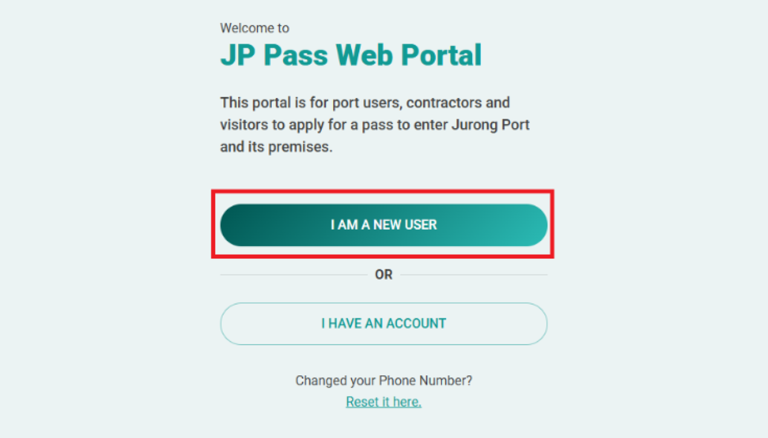
1. Use the JP Pass mobile app or web portal to start the registration process.
2. Click “I AM A NEW USER” on the login page.

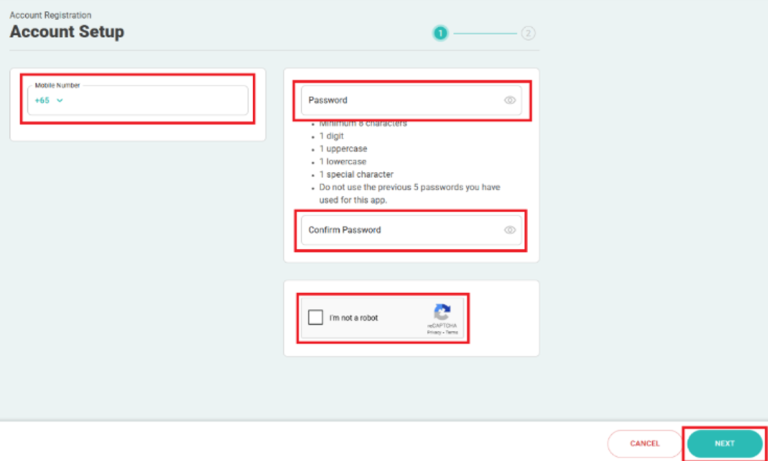
3. Enter your mobile number, create a password, click on the reCAPTCHA verification, and click “NEXT“.

4. After clicking “NEXT,” a confirmation message will appear to indicate that your JP Pass account has been successfully created. You will then be directed to provide your basic information, either by retrieving it through Singpass or entering it manually.
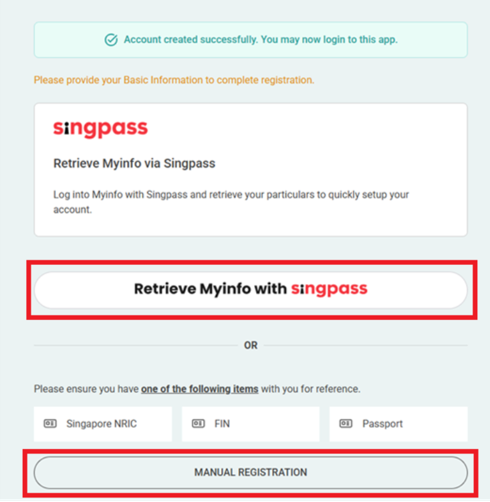
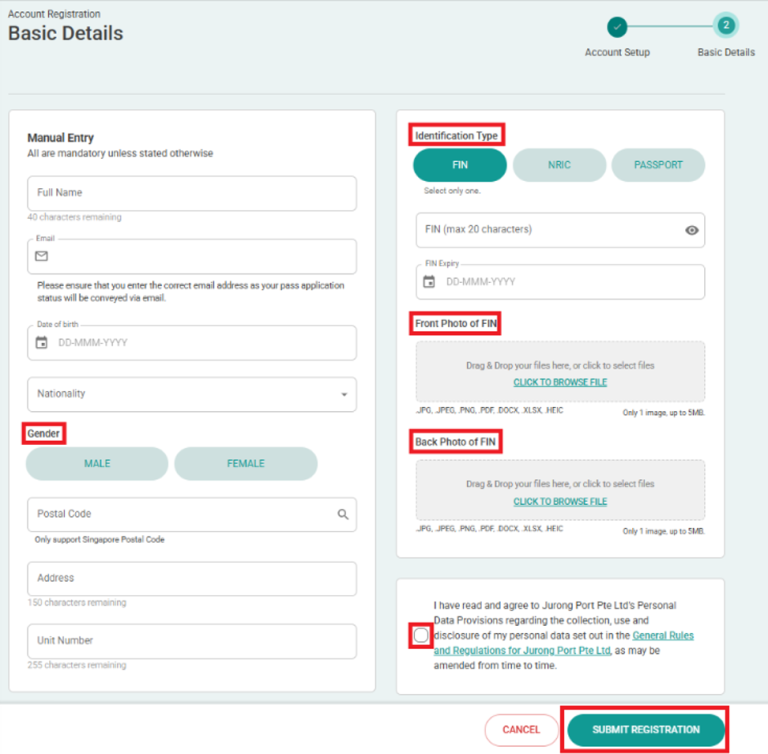
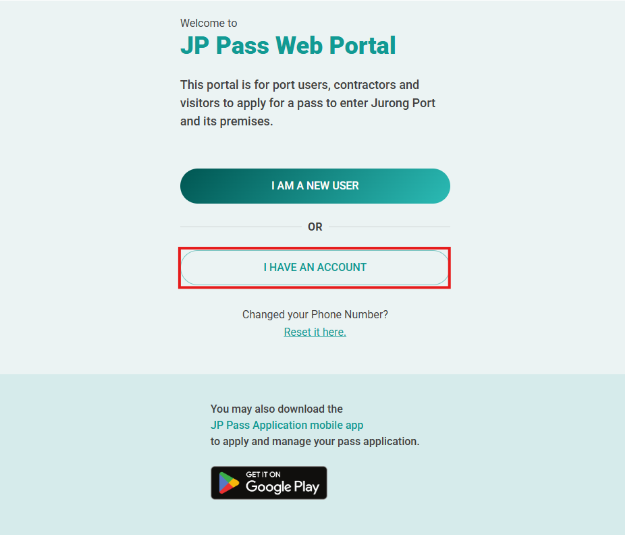
If you select “MANUAL REGISTRATION,” you’ll be redirected to the Account Registration – Basic Details page. Enter the required information, click the link to review the General Rules and Regulations, check the box to confirm your agreement, and then click “Submit Registration.”

What should I do if my country code is not available in the drop-down menu during JP Pass registration?
If your country code is not available in the drop-down menu, you may apply for a JP Pass in person at the Pass Office counter. You will need to present a valid sponsor letter, which should be emailed to [email protected] before your visit.

Applicants whose country code is available in the drop-down menu should submit their applications through the JP Pass mobile app or web portal.

What is the process for JP Pass application?
The JP Pass is available to all users sponsored by a JP credit account holder.

Application Process:

1. Use the JP Pass mobile app or web portal at https://jppass.jp.com.sg/ to apply for a pass.

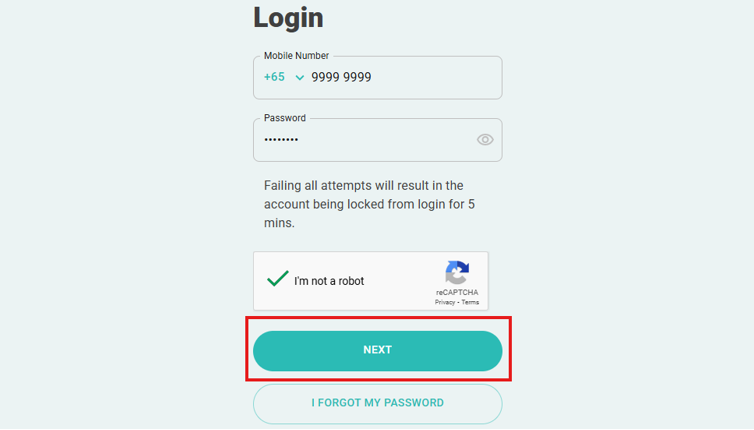
2. Login using your credentials, complete OTP verification and click “NEXT”

Note: If you have set up biometric login, you may also log in using the biometric method supported by your device, such as facial recognition or fingerprint.

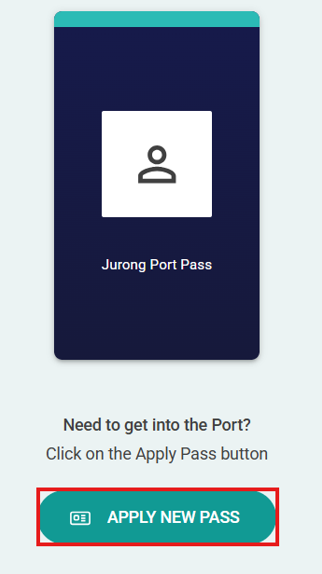
3. Click on “Apply New Pass” and complete the application form.

4. Once the application is successfully submitted:

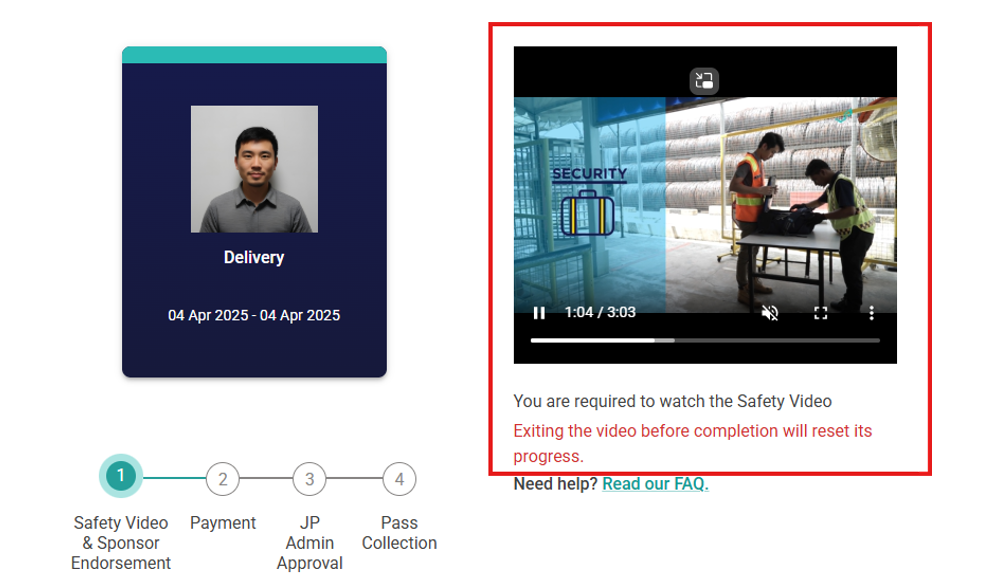
  • Watch the mandatory safety video – This is required for all applicants and must be completed before the application can proceed.
  • Sponsor Company Endorsement – The application will be pending endorsement from the sponsor company. You will be notified once this process is complete.
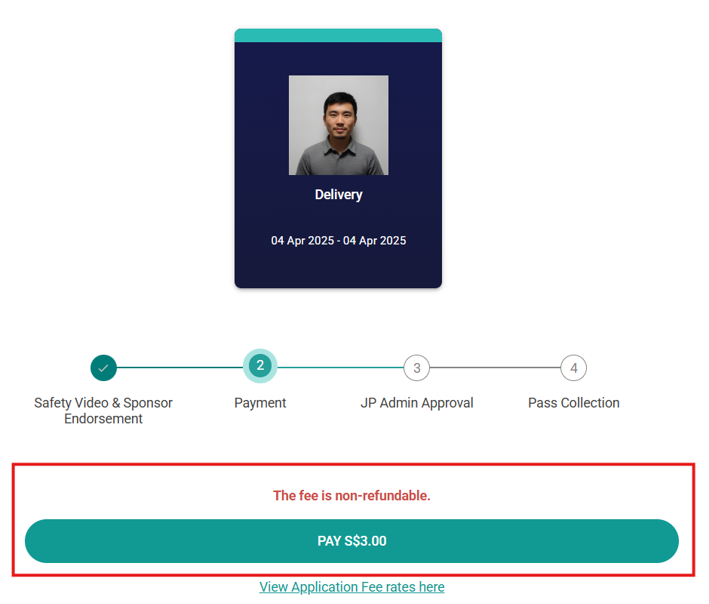
  • Online Payment – Once your application is endorsed, you will be prompted to complete the online payment to finalise your submission
  • Note: Please note that the application fees are non-refundable. We recommend ensuring that all information is correct before submitting and endorsing your application

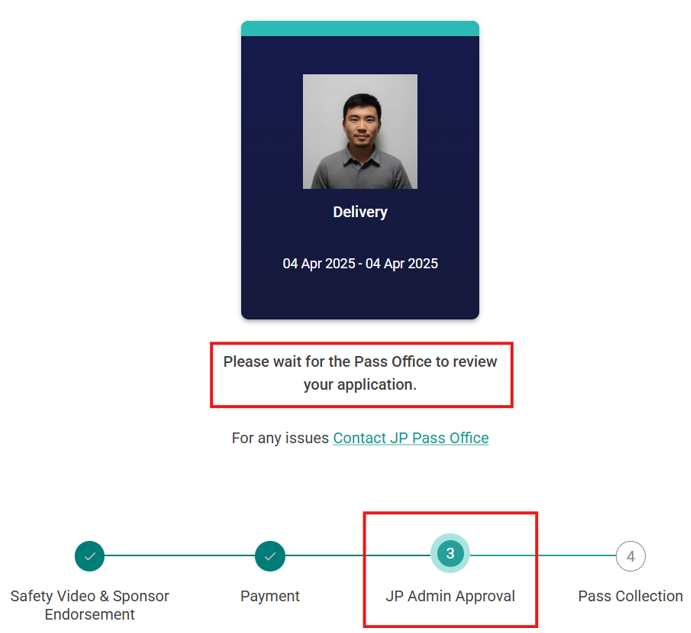
5. Once the payment is successful, the Pass Office will review the supporting documents for verification before approving the application

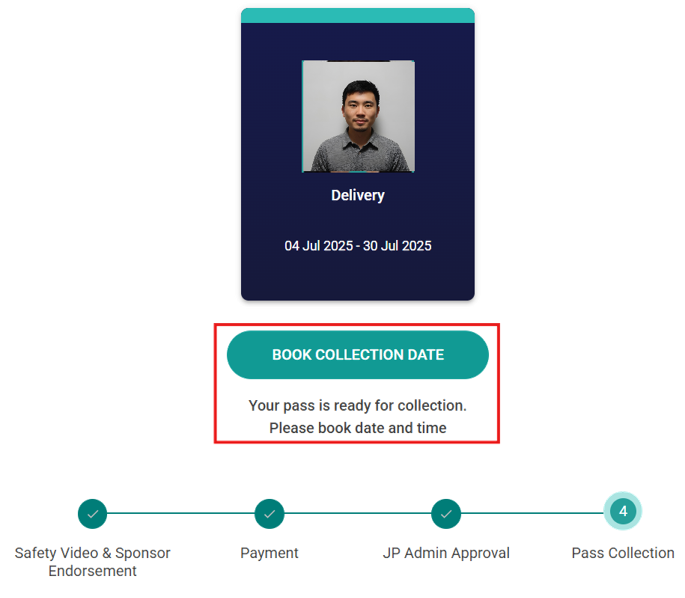
6. If the application is approved, you will receive a notification to book an appointment for biometric enrolment and ePass activation.

Note: Please arrive at the Pass Office at your selected timeslot to complete the biometric enrolment and ePass activation. All users must complete these steps in person and bring their physical government-issued photo ID for verification.

Can I apply for JP Pass in advance?
Yes. Applications for the JP Pass can be done up to sixty (60) days in advance. Please allow up to five (5) days for your JP Pass application to be reviewed and processed after a complete application has been submitted and payment has been made.

I have applied for my work pass but have not received the physical work pass yet. Can I apply for a JP Pass?
Yes. You can apply for a JP Pass using your In-Principle Approval (IPA). The maximum JP Pass duration you can apply for is based on the validity period approved in your IPA.

How do I renew my JP Pass?
The renewal process is the same as applying for a new JP Pass. Log in to the JP Pass mobile app or web portal and select “Renewal” instead of “Apply New Pass”. To avoid disruption to port access, please ensure that your renewal application is submitted and approved before your current JP Pass expires.

Do I need to come to the Pass Office for renewal?
No. Renewal applications and payments must be completed through the JP Pass mobile app or web portal. Please ensure that your renewal application has been approved and your ePass is valid before entering the port or terminal.

e

Application Issues and Follow-Up

I have had my application submitted by a Sponsor Company Admin (SCA), but I have not registered for an account. How do I log in?
After your application is submitted by the SCA, a WhatsApp message will be sent to the registered mobile number with your login details. Please ensure that the SCA has entered your mobile number, identification number, and date of birth correctly. Your login details will be as follows:

  • USERNAME: Your mobile number (e.g., 98004500)
  • PASSWORD: Jp@ + Your date of birth in DDMMYY format (e.g., 011260) + Last 4 characters of your Government ID (NRIC, FIN, or Passport) (e.g., 123A).

Example: Jp@011260123A

What happens if my application is not endorsed by the Sponsor Company?
If an online application is not endorsed by the sponsoring company within 30 days from the date of submission, the system will automatically purge the application.

Do I need an SCA endorsement if I have a Sponsor Code?
No. Applicants who submit their application using a valid Sponsor Code do not require SCA endorsement. The Sponsor Code allows the applicant to bypass the endorsement process.

What should I do if my Sponsor Code is invalid or has expired?
Please contact your Sponsor Company Admin to obtain a valid Sponsor Code. Each Sponsor Code can only be used once per application and expires six (6) months from the date it is generated.

What happens if I do not make payment after my application is endorsed?
If payment is not received for an endorsed application within sixty (60) days from the date of endorsement, the system will automatically purge the application.

How do I check my application status?
Log in to your JP Pass account through the mobile app or web portal. Your application status can be viewed under “My Applications.” Select the relevant application to view its status.

How long does it take for my JP Pass application to be approved?
Please allow up to five (5) days for your JP Pass application to be reviewed and processed after a complete application has been submitted and payment has been made.

What should I do if my application is still pending?
If your application status is pending approval, please allow time for the application to be reviewed and processed. You can check your application status through the JP Pass mobile app or web portal.

If your application has exceeded the usual processing time or you require assistance, please contact the Pass Office via the JP Pass chatbot.

What should I do if my JP Pass application is queried by the Pass Office?
If your application is queried by the Pass Office for further clarification on the purpose of entry, occupation code, or employer, please make the necessary amendments and resubmit the application within seven (7) days.

What can I amend if my individual JP Pass application is queried?
When your application is queried by the Pass Office, you may amend only the following information:

  • Purpose of entry
  • Occupation code
  • Employer

I received a query stating that my name during registration does not match my government-issued ID. How do I make the amendment?
Go to My Profile and edit your name to match the details on your government-issued ID. After making the amendment, resubmit your application.

I received a query stating that my date of birth or FIN expiry date does not match my government-issued ID. How do I make the amendment?
Go to My Profile and edit the relevant details to match your government-issued ID. After making the amendment, resubmit your application.

Please note that changes made under My Profile will not be updated in your current application immediately. As such, the amended details may not be reflected correctly in the current application.

What happens if I do not resubmit the requested information after my JP Pass is queried by the Pass Office?
If the Pass Office raises queries on your application and you do not resubmit the required information within seven (7) days, the system will automatically purge the application, and all fees paid will be forfeited.

What should I do if my application is rejected?
Log in to your JP Pass account and check the rejection reason under the relevant application.

If you still require a JP Pass, please submit a new application with the correct information, where applicable. Fees paid for the rejected application will not be refunded.

e

JP Pass Activation and Biometric Enrolment

What do I need to do after my JP Pass application is approved?
For first-time applicants, you must complete biometric enrolment and ePass activation before you can enter the port.

For applications submitted after 1 October 2026, you can book a biometric enrolment appointment through the JP Pass mobile app or web portal and complete biometric enrolment at the self-service kiosk.

For applications submitted before 1 October 2026, you must take a queue number through JP Pass and complete biometric enrolment over the counter at the Pass Office.

How long do I have to activate my approved JP Pass?
The JP Pass must be activated within thirty (30) days from the date of approval. If the JP Pass is not activated within this time frame, the pass application will be cancelled and all fees paid will be forfeited.

Can I complete my enrolment before my pass start date?
Yes. You may complete your biometric enrolment and ePass activation before your JP Pass start date. However, your ePass will only become active and you will only be able to enter the port from the approved start date of your JP Pass.

For example, if your pass starts on 1 October 2026, your ePass will only be active from 1 October 2026, even if your biometric enrolment is completed on 30 September 2026.

How do I book an appointment for biometric enrolment?
Log in to your JP Pass account and click “Book Appointment.” Select your preferred date and time.

What if there are no available biometric enrolment slots?
Please check JP Pass mobile app or web portal again for the next available appointment slot.

Can I use the self-service kiosk for biometric enrolment?
The self-service kiosk is available for JP Pass applications submitted after 1 October 2026, subject to an approved application and a booked appointment.

If your application was submitted before 1 October 2026, you will need to take a queue number through JP Pass and complete biometric enrolment over the counter at the Pass Office.

What type of ID is accepted for biometric enrolment?
You must present the physical government-issued photo ID used for your JP Pass account registration and pass application for verification. The following are not accepted at the kiosk:

  • Digital Work Pass or Singpass documents
  • Driving license

Do I need to be present for biometric enrolment?
Yes. Applicants must be physically present to complete biometric enrolment.

Can I enrol my biometric outside Pass Office operating hours?
No. Biometric enrolment is currently available based on the available booking slots. The first booking slot is 7.00am–7.59am, and the last booking slot is 6.00pm–6.59pm.

Note: The biometric enrolment service may be expanded in the future once the kiosk is fully operational.

How do I complete my biometric enrolment using the self-service kiosk?

1. Select “Biometric Enrolment” as the service on the kiosk.

2. Log in to JP Pass and select “View Kiosk QR Code”. Present the QR code to the QR scanner at the kiosk.

3. Place your government-issued photo ID on the document scanner for verification.

4. Once the kiosk QR code and government-issued photo ID have been successfully verified, the approved application will be displayed on the kiosk screen. Select “Next” to proceed.

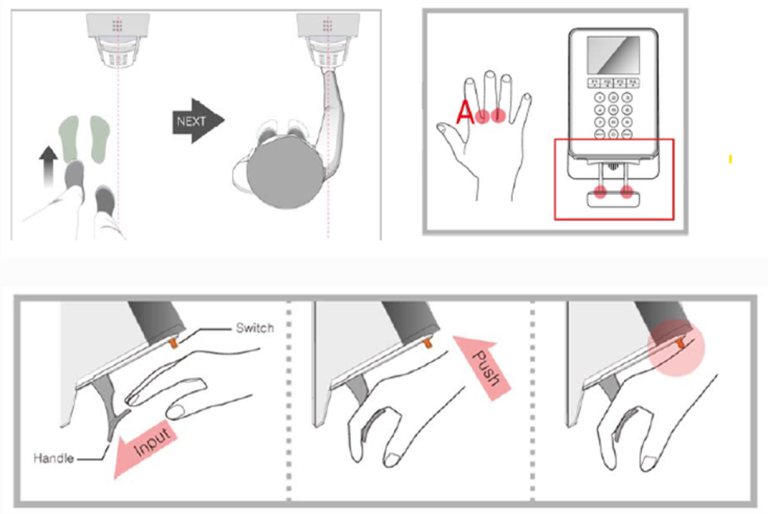
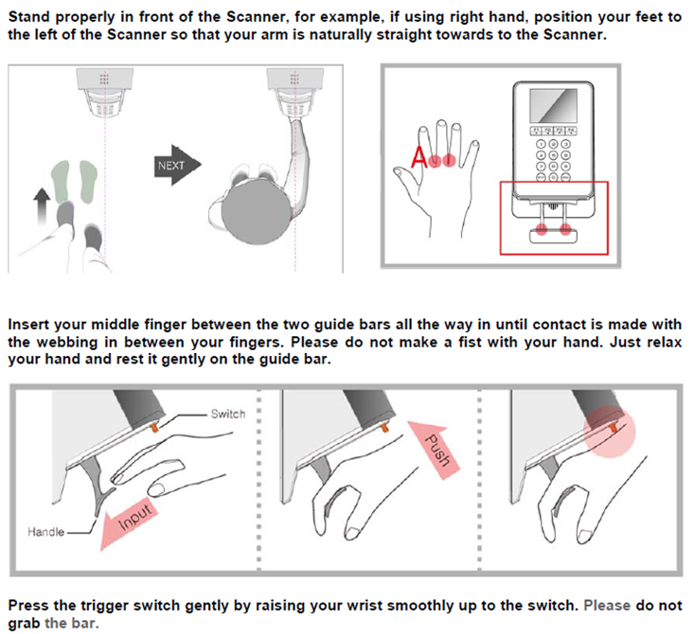
5. Follow the on-screen instructions to enrol your biometric:

  • Insert your middle finger between the two guide bars until it is fully inserted and contact is made with the webbing between your fingers.
  • Do not make a fist. Keep your hand relaxed and rest it gently on the guide bar.
  • Gently raise your wrist to press the trigger switch. Do not grip the bar.

Note: The biometric enrolment process will be performed twice; once to register your biometric and once to verify it.
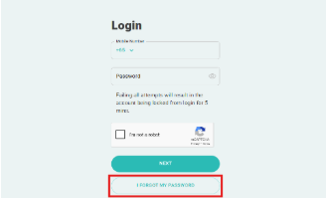
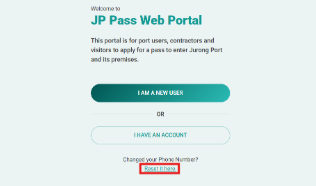
How many attempts do I have to complete biometric enrolment?
Applicants are given up to three attempts to complete biometric enrolment. A 30-second cooldown period applies between each attempt.

What should I do if the kiosk cannot read my ID?
Please ensure that your physical government-issued photo ID is placed correctly on the document scanner and follow the on-screen instructions. If the kiosk is still unable to read your ID:

  • During Pass Office operating hours: Select “Facing Issues with Kiosk” on the kiosk. You will be issued a queue number, and our staff will assist to complete your biometric enrolment over the counter.
  • After Pass Office operating hours: Contact the JP Pass chatbot for assistance.

What should I do if I am unable to complete biometric enrolment?
If you are unable to complete biometric enrolment after the available attempts, please contact the JP Pass chatbot for assistance.

What should I do if I miss my biometric enrolment appointment?
If you miss your appointment, log in to the JP Pass mobile app or web portal to book a new appointment.

I have applied for a JP Pass using my IPA as I have not received my physical work pass card yet. How do I complete my biometric enrolment?
Biometric enrolment for applicants using an IPA can be completed over the counter at the Pass Office. Please bring your IPA and valid identification document for verification.

When you arrive at the Pass Office, select “Facing Issues with Kiosk” through JP Pass to obtain a queue number. You will then be assisted over the counter to complete your biometric enrolment.

How do I check the duration or validity period of my JP Pass?
The JP Pass is issued with a validity period ranging from 1 day to 3 years, depending on the user’s work assignment. You can check the exact validity period and expiry date of your pass by logging in to the JP Pass mobile app or web portal.

When do I need to re-enrol my biometric?
Biometric enrolment is required only once. You will need to re-enrol if there is a change to the government-issued photo ID used for your JP Pass account registration and pass application, or if your biometric enrolment does not match the biometric record in the system and you are instructed to complete reenrolment.

When can I enter the port after biometric enrolment and ePass activation?
You can enter the port once your biometric enrolment and ePass activation are completed, and your JP Pass has reached its approved start date.

e

JP Pass Account Management

How do I reset my JP Pass account password?
To reset your password, click the “I Forgot My Password” link on the login page and follow the instructions.

I forgot my user ID. What should I do?
Your user ID is the mobile number you used during registration.

I changed my handphone number. Can I use my new number to log in or create a new account?
If you’ve changed your mobile number, there’s no need to create a new account.

Select “Reset It Here” under the “Changed Your Phone Number?” on the main page and follow the instructions to update your mobile number and regain access to your account.

Why should I set up a PIN?
Setting up a PIN allows you to access your JP Pass account using the PIN, even when your device is offline. This provides a more convenient login experience and reduces the need to rely on OTPs sent via WhatsApp or SMS.

How do I set up a 6-digit PIN?
1. Log in to the JP Pass mobile app.
2. Go to Settings.
3. Select “Setup PIN” and follow the instructions to set up your preferred 6-digit PIN.
4. Once the PIN has been successfully set up, you will be prompted to enable biometric authentication, subject to your mobile device’s capabilities.

How often do I need to set up my 6-digit PIN?
For security purposes, your 6-digit PIN must be set up again every 90 days. You will be prompted to set up a new PIN when your current PIN expires.

How long does my JP Pass app stay logged in?
For security purposes, you will be automatically logged out after 15 minutes of inactivity. You will need to log in again before using the app.

Will my JP Pass account become inactive if I don’t use it?
Yes, your JP Pass account will automatically become inactive after 90 days of inactivity. If your account becomes inactive, any active passes associated with the account may be cancelled, and all fees paid will be forfeited.

How do I cancel my active pass?
If you are no longer employed by or sponsored by the company, please log in to your JP Pass account and cancel your active pass.

Can I use my QR code after my JP Pass expires?
Your QR code is no longer valid once your JP Pass expires. Please ensure that your JP Pass is renewed and approved before your current pass expires.

How do I replace a lost or damaged physical JP Pass?
Physical JP Pass issuance has ceased, and replacement physical JP Passes will not be issued. Please use your ePass QR code for port access.

e

JP Pass Account Deletion

Can I delete my JP Pass account if I still have an active pass?
Yes. You can delete your JP Pass account even if you have an active pass. However, deleting your account will result in the cancellation of your active pass, and all fees paid will be forfeited.

What will happen to my pass after my JP Pass account is deleted?
Any active pass associated with the account will be cancelled, and all fees paid will be forfeited.

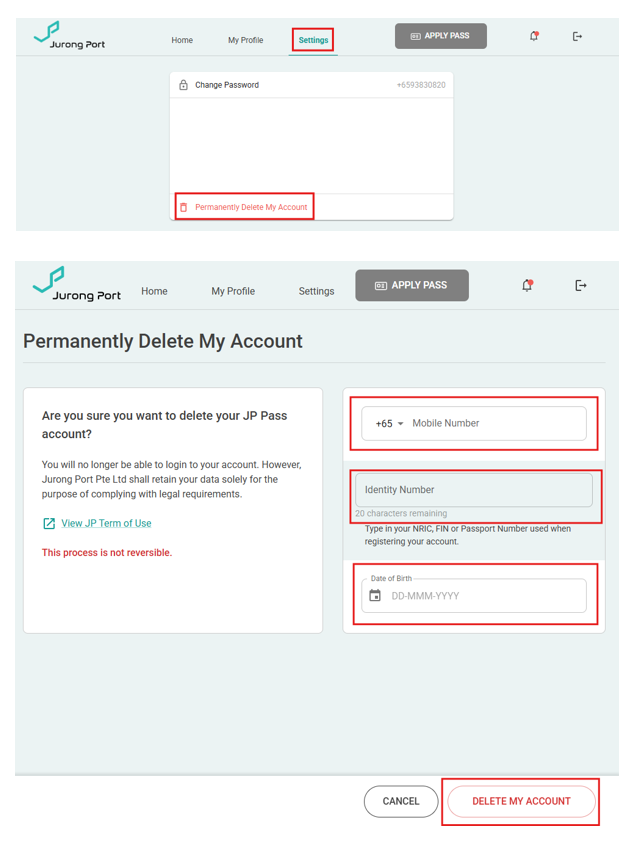
How do I delete my JP Pass account?
To delete your JP Pass account, go to the “Settings” and select “Permanently Delete My Account.” On the “Permanently Delete My Account” page, enter the required information and select “Delete My Account.”

How long will it take for my JP Pass account to be deleted?
Your JP Pass account will be deleted immediately upon submission of the deletion request.

Can I cancel my request to delete my JP Pass account?
No. Once the deletion request has been submitted, it cannot be cancelled or reversed.

Can I use the same mobile number after deleting my JP Pass account if I decide to create a new one?
Yes. You can use the same mobile number to create a new JP Pass account if you decide to register again.

e

Sponsor Company Admin – Specific Information

What is the role of Sponsor Company Admin (SCA)?
Sponsor Company Admin (SCA) is responsible for reviewing and endorsing applications for JP Pass on behalf of the company, including applications submitted by third-party entities like vendors or subcontractors.

If any information in the application is incorrect, such as the employer, pass duration, applicant details, purpose of entry or occupation code, the SCA should reject the application. The applicant must then submit a new application with the correct information.

Key responsibilities include:

  • Reviewing applications to ensure compliance with Jurong Port policies and relevant regulations.
  • Managing access rights to ensure that only authorized individuals can endorse applications.

Note: An SCA cannot endorse their own application. We recommend that each company appoint at least two admins, unless the admin does not require a Jurong Port pass.

I already have a JPOnline User ID to endorse Long Term Pass (LTP) applications in the previous system. Can I use it to log in to JP Pass?
No. The JP Pass uses a separate platform from JPOnline. Your JPOnline user ID cannot be used to log in to JP Pass, and you will need to create a separate JP Pass account for endorsement activities.

How do I register as a Sponsor Company Admin for endorsement activities?
If your company is authorized to act as a Sponsor Company, please have your designated Company Admin create a JP Pass account for endorsement activities. Please refer to the step-by-step guide on creating a JP Pass account for detailed instructions.

For the first Sponsor Admin, please notify the Pass Office at [email protected] once the account has been created so that the necessary endorsement access can be granted.

Additional Sponsor Company Admins can be added by an existing Sponsor Company Admin through the “My Team” function. There is no need to contact the Pass Office to grant access to additional team members. For instructions on adding team members, please refer to “How do I add a team member?”

What should I do if I cannot access the SCA endorsement function?
Please ensure that you have registered for a JP Pass account and have been granted the necessary endorsement access. If you continue to experience issues, please contact the Pass Office via the JP Pass chatbot.

How do I add a team member?
Go to “My Team” and click “Add Staff.” Enter the email address used by the team member during JP Pass account registration.

If the team member has not registered for a JP Pass account, please refer to “How do I register as a Sponsor Company Admin for endorsement activities?” for the account registration process.

What should I do if the SCA has left the company or is no longer responsible for endorsement activities?
Go to “My Team.” Click the three-dot icon next to the team member’s contact number and select “Remove Staff.”

When should an SCA reject a JP Pass application?
An SCA should reject an application if any information is incorrect, such as the employer, pass duration, applicant details, purpose of entry or occupation code. The applicant must then submit a new application with the correct information.

Can an SCA cancel an application that they no longer sponsor?
There is currently no function for SCAs to cancel an application that they no longer sponsor. Please email the Pass Office at [email protected] for assistance.

What is a Sponsor Code?
A Sponsor Code is a unique code generated by an SCA within the JP Pass system. It allows employees, vendors and subcontractors to bypass the endorsement process when submitting their pass applications.

Who can generate Sponsor Codes?
Only SCAs are authorised to generate and issue Sponsor Codes to their employees, vendors, or subcontractors.

How do I generate Sponsor Codes?
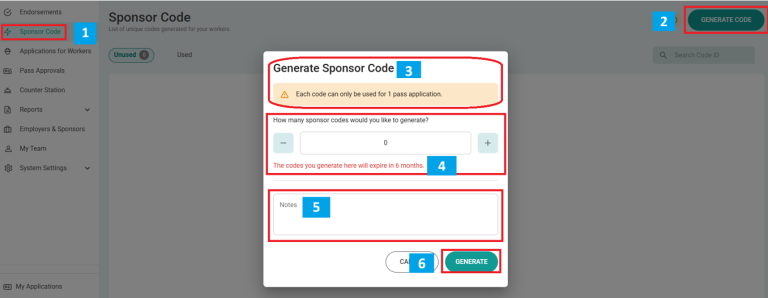
Follow these steps to generate a Sponsor Code:
1. Click Sponsor Code from the menu.
2. Click Generate Code.
3. A prompt will appear (see illustration).
4. Select the number of Sponsor Codes to generate using the “-” and “+” buttons.
5. (Optional) Enter any notes related to the codes.
6. Click GENERATE.

The system will generate unique Sponsor Codes, which you can then distribute to your employees, vendors or subcontractors.

Can Sponsor Codes be reused?
No. Each Sponsor Code is unique and can only be used once per application. Generated Sponsor Codes will expire six (6) months from the date they are generated.

How can an SCA submit applications for multiple applicants?
An SCA can submit multiple pass applications at once using the bulk application feature, provided that the applications have the same employer, purpose of entry, occupation code, and pass duration.

If employees have different purpose of entry, occupation codes, or pass durations, how should I submit the applications?
If employees have different employers, purposes of entry, occupation codes, or pass durations, you must submit separate bulk applications for each group.

Can an SCA amend an application after submission?
No. Once a bulk application has been submitted, the SCA cannot amend the applicant’s information.

Please ensure that all applicant details, including the employer, purpose of entry, occupation code and pass duration, are correct before submitting the application. If any information is incorrect, the SCA will need to submit a new application with the correct information. Any fees paid for the incorrect application will be forfeited.

Do individual applicants need to acknowledge and consent to the PDPA clause when I submit a bulk application?
Unlike the individual application process, bulk applications do not include a platform for individual applicants to directly acknowledge and consent to the Personal Data Protection Act (PDPA) clause.

By proceeding with the bulk application, you confirm that all individuals included have been informed of the PDPA clause and have provided the necessary consent.

I have submitted a bulk application on behalf of my employees, but they have not registered for an account. How do they log in?
A WhatsApp message will be sent to the registered mobile number provided in the bulk application.

As the SCA, please ensure that the mobile number, identification number, and date of birth are entered correctly. The login details will be as follows:

  • USERNAME: Your mobile number (e.g. 98004500)
  • PASSWORD: Jp@ + Your date of birth in DDMMYY format (e.g. 011260) + Last 4 Characters of your Government ID (NRIC, FIN or Passport) (e.g.123A).

Example: Jp@011260123A

Entry into the Port

e

Can I enter the port if my ePass is approved but not activated?

No. First-time applicants must complete biometric enrolment and ePass activation before they can enter the port.

e

Can I enter before the pass start date?

No. Port access is only available from the approved JP Pass start date, even if biometric enrolment and ePass activation have been completed earlier.

e

The ground officer wants to verify my pass details. How can I show this information?

Under your active pass in the JP Pass mobile app, you can view key pass details such as your name, occupation code, pass validity period, access area, and card serial number.

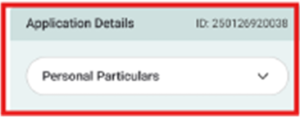
To view additional personal particulars, go to the Application Details section and tap the drop-down arrow to expand the information.

e

How do I generate my QR Code to enter port?

Log in to the JP Pass mobile app and navigate to your active pass. Tap the QR code icon next to the active pass to generate and display your QR code for scanning.

e

How do I use my JP Pass at the port gate?

1. Present your QR code to the QR scanner located beside the SmartPass reader.

2. Place your hand on the biometric reader for verification.

3. Upon successful verification, proceed through the turnstile or vehicle lanes to enter or exit the port.

If verification is unsuccessful, please approach the security personnel at the gate for assistance.

e

What should I do if my QR code cannot be scanned?

Please ensure that the QR code displayed on your JP Pass app or web portal is clear and the screen brightness is sufficient. If the QR code still cannot be scanned, contact the JP Pass chatbot for assistance.

Photography

E

Is photography or video filming prohibited in the port?

Photography, videography or filming is strictly prohibited in the port.

Approval must be obtained from the relevant department(s) and authorities prior to any photography taking, video recording, or filming activities within the port premises.

The completed and signed application form must be submitted in advance to the JP Security Department (JPSD) [email protected].

For media and publication purposes, additional endorsement from JP Corporate Relations & Communications (CRC) at [email protected] is required, and all related materials must be shared with JP CRC prior to publication.

Vehicle Entry Passes (effective 1 April 2018)

Vehicle Registration

e

Is vehicle registration required for entry into the port?

Motorcycles and bicycles are not allowed entry into the port. All other vehicles, local or foreign-registered, must complete a one-time registration.


Modes of Registration:

JP-Online Application – (customer/port user with both Credit and JP-Online Accounts)

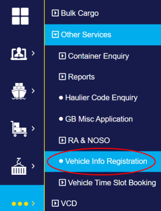
(1) Login to JPOM

(2) Proceed to “Other Services”

(3) Select “Vehicle Info Registration”

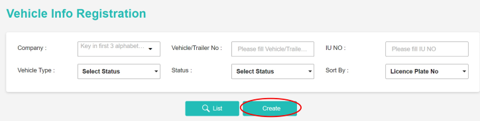
(4) Select “Create”

(5) Enter the relevant information, ie. Vehicle/Trailer no, Name of declarant, Contact No, Vehicle Type, Unladen Weight

(6) Kindly read the Terms & Conditions and select “I agree”

(7) Submit Application

*NO Payment is required for registration of vehicle

Self-Service Online Registration

(1) Go to https://jponline.com.sg/jppass/ui/home

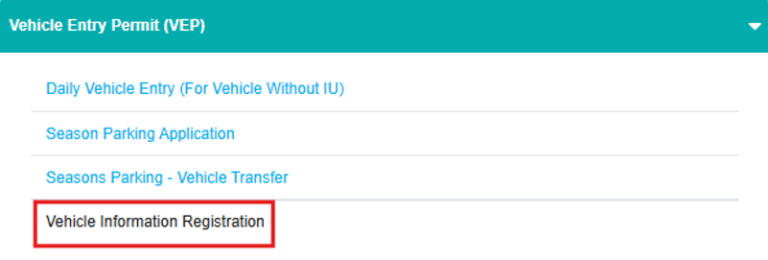
(2) Under “Vehicle Entry Permit (VEP)”, click “Vehicle Information Registration”

(3) Complete and submit form.

The company details, In-Vehicle Unit (IU) number and unladen weight of the vehicle need to be indicated in the application form

You will receive a WhatsApp notification with updates on the status of your registration.

e

Can I submit a vehicle registration request manually?

Vehicle registration is available through the self-service Vehicle Information Registration form.

The Pass Office will only process manual requests for updating or deleting existing vehicle records. If you need assistance with these requests, please contact the Pass Office directly.

e

Do I require a Vehicle Entry Pass to drive into the port?

Vehicle Entry Pass (VEP) is required for pick-up trucks, panel vans, covered vans and private cars driving into the port. Please ensure your Cashcard has sufficient balance and is inserted into the IU reader during exit.

Daily Vehicle Entry Pass

Local Vehicle: There is no application form for daily VEP. A $2 fee will be deducted during exit, allowing multiple trips within 24hours from the time of entry.

Foreign Vehicle: Foreign vehicle drivers must apply for a VEP at the Pass Office, with a maximum validity of 5 days. The Pass Office will issue a paper VEP, which drivers are required to display it on their dashboard.

(1) Go to https://jponline.com.sg/jppass/ui/home

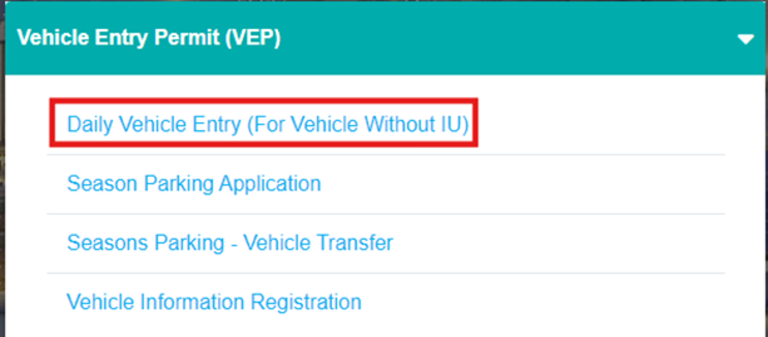
(2) Under “Vehicle Entry Permit (VEP), download ‘Daily Vehicle Entry (For Vehicle Without IU)’


(3) Physically submit the completed form to the Pass Office counter

[Payment is by CashCard, NETS, or contactless mode]


Season Parking Vehicle Entry Pass – (LOCAL VEHICLE ONLY)

(1) Go to https://jponline.com.sg/jppass/ui/home

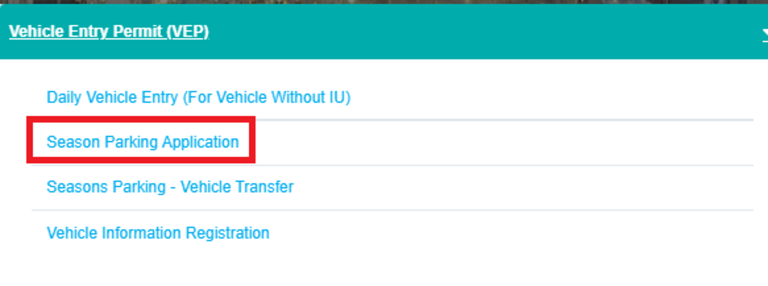
(2) Under “Vehicle Entry Permit (VEP), download ‘Season Parking Application’


(3) Completed form to be submitted to:
• Pass Office physically OR
• By email (scanned copy)

[Payment is by CashCard, NETS, Cheque or contactless payment]

e

How do I qualify for a Season Parking Vehicle Entry Pass?

Season Parking Vehicle Entry Pass is provided to companies that qualify under any of the below-mentioned categories:

  • Tenant
  • Tenant cum Agent
  • Agent (non-tenant)
  • Tenant cum Stevedore
  • Stevedoring (non-tenant)
  • JP Main Contractor
  • Lessee
  • Supplier
  • J1 Basin Operator (Wooden Craft/Barter Operator)
  • Canteen Stall Holders
  • JP Staff
e

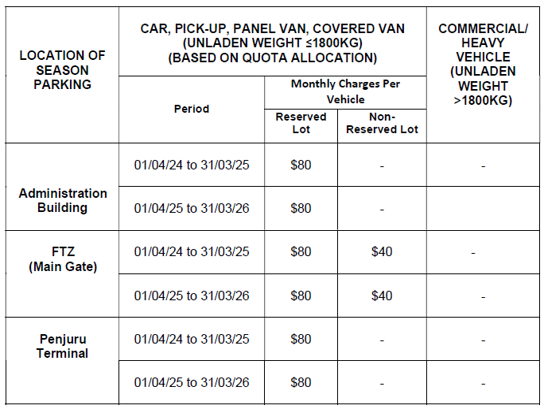
What are the charges for Season Parking Vehicle Entry Pass?

Monthly season parking rates are inclusive of GST.

Mechanical Equipment Licensing (MEL) Application (effective 20 July 2026)

Mechanical Equipment Licensing (MEL) Application

e

What is the Mechanical Equipment Licensing (MEL) Application?

The MEL Application is Jurong Port’s online platform for the submission and renewal of Equipment Permit Cards for mechanical equipment operating within the port.

e

How do I apply for/ renew Equipment Permit Cards?

Applications and renewals for Equipment Permit Cards can be done via the online MEL Application. For detailed instructions, please refer to this step-by-step guide.

e

Which equipment requires an Equipment Permit Card?

An Equipment Permit Card is required for equipment that:

  • Is mechanically powered;
  • Requires deployment or stationing within operational areas; and
  • Has potential safety impact on personnel or infrastructure.

Examples include forklifts, excavators, wheel loaders, MEWPs, reach stackers, road rollers, and other similar machinery.

e

How much are the application fees?

The application fee is $40 per equipment application.

Fees paid are non-refundable and payment can be made through the MEL platform.

e

What about existing equipment with valid permits?

Existing permits will continue to remain valid until their expiry date. Upon expiry, all renewals must be submitted through the MEL application.

e

What documents are required for the application?

Depending on the equipment type and intended operation, supporting documents may include:

  • Valid insurance certificates (e.g. Public Liability and Machinery All Risks)
  • Equipment/LTA registration documents
  • Equipment Certification of Origin or Serial Plate details
  • MOM/Authorised Examiner (AE) certificates
  • Maintenance or inspection certificates
  • Risk Assessment (RA)
  • Operator training or competency certificates
  • NEA registration documents
  • OEM certifications
  • Equipment load charts or technical specifications

Jurong Port may request additional supporting documents where necessary to facilitate the application review.

e

Can I amend my application after submission?

Yes, amendments may be made before approval. Once the permit has been approved, any subsequent changes will require a new application submission.

e

What happens if my application is incomplete or rejected?

You will be notified via the system through email to resubmit the required information.

e

What is the expected lead time for application submission?

To minimise operational disruptions, applications should be submitted at least three (3) days in advance. Last-minute requests will be reviewed and processed on a case-by-case basis.

e

Will I be notified before my permit expires?

Yes, automated reminders will be sent prior to permit expiry to facilitate timely renewals.

e

What happens if I operate equipment without a valid permit?

Equipment without a valid permit is NOT ALLOWED to operate within the port. Non-compliance may result in a Notice of Infringement (NOI) being issued at the company level.

e

Who should I contact if I face issues with MEL?

For assistance, please contact: [email protected].

Have we resolved your concern?  If not, let us help you.

BACK TO FAQS

Jurong Port

Headquartered in Singapore, Jurong Port is a leading international multipurpose port operator handling general, bulk and containerised cargo. Jurong Port began operations in 1965 as a general and bulk cargo port, serving the development needs of Singapore’s Jurong industrial estate. Today, its main gateway terminal in Singapore welcomes more than 15,000 vessels each year from both the region and internationally.

JURONG PORT

  • 37 Jurong Port Road Singapore 619110
  • +65 6265 0666
  • Enquiry Form
PENJURU LIGHTER TERMINAL
  • 42G Penjuru Road

    Singapore 609151
  • +65 6413 9614
  • +65 6316 2072
MARINA SOUTH WHARVES
  • 71 Marina Coastal Drive
    Singapore 018946
  • +65 6413 9617
  • +65 6604 9403
OFFSHORE MARINE CENTRE
  • 101 Tuas South Ave 8
    Singapore 637423
  • +65 6660 9057
  • [email protected]
JURONG PORT ACADEMY
  • Jurong Port Admin Building
    37 Jurong Port Road
    Singapore 619110
  • [email protected]
Copyright © 2025 Jurong Port Pte Ltd. All Rights Reserved. Terms of Use | Privacy Statement
  • Home
  • Why Us
  • Our Expertise
    • Construction Ecosystems
      • RMC Ecosystem
      • Cement Terminal
      • Steel Terminal
    • Lighterage Ecosystem
      • Lighter Terminals
    • Energy Ecosystem
      • Jurong Port
        Tank Terminals
      • Jurong Port
        Universal Terminal
    • Containers
      • Conventional Containers
    • Other General and Bulk Cargo
      • Project Logistics Hub (& Projects Showcase)
      • Offshore Marine Centres
      • General / Break Bulk
      • Ro/Ro
      • Dry and Liquid Bulk
  • International Presence
    • China
      • Rizhao Port Jurong Terminal (Rizhao)
    • Indonesia
      • Marunda Center Terminal (Jakarta)
  • About Us
    • Overview
    • Awards & Milestones
    • Leadership
    • Business Partnerships
    • JP Schedule of Rates
    • Port Layout
    • Environmental, Health & Safety
    • Sustainability
    • Port Rules & Regulations
    • Whistle Blowing Policies
  • Join Us
    • Job Opportunities
    • Internship and Scholarship
  • Contact Us
    • Contacts & Locations
    • Enquiries
  • FAQs
  • News Centre
    • Press Releases
    • Feature Stories
    • Port Circulars
    • Corporate Social Responsibility
  • JP Connectivity
  • Pass Application
  • JP Online
  • Tender/RFx
Jurong Port