
What is the role of Sponsor Company Admin (SCA)?
Sponsor Company Admin (SCA) is responsible for reviewing and endorsing applications for JP Pass on behalf of the company, including applications submitted by third-party entities like vendors or subcontractors.
If any information in the application is incorrect, such as the employer, pass duration, applicant details, purpose of entry or occupation code, the SCA should reject the application. The applicant must then submit a new application with the correct information.
Key responsibilities include:
- Reviewing applications to ensure compliance with Jurong Port policies and relevant regulations.
- Managing access rights to ensure that only authorized individuals can endorse applications.
Note: An SCA cannot endorse their own application. We recommend that each company appoint at least two admins, unless the admin does not require a Jurong Port pass.
I already have a JPOnline User ID to endorse Long Term Pass (LTP) applications in the previous system. Can I use it to log in to JP Pass?
No. The JP Pass uses a separate platform from JPOnline. Your JPOnline user ID cannot be used to log in to JP Pass, and you will need to create a separate JP Pass account for endorsement activities.
How do I register as a Sponsor Company Admin for endorsement activities?
If your company is authorized to act as a Sponsor Company, please have your designated Company Admin create a JP Pass account for endorsement activities. Please refer to the step-by-step guide on creating a JP Pass account for detailed instructions.
For the first Sponsor Admin, please notify the Pass Office at [email protected] once the account has been created so that the necessary endorsement access can be granted.
Additional Sponsor Company Admins can be added by an existing Sponsor Company Admin through the “My Team” function. There is no need to contact the Pass Office to grant access to additional team members. For instructions on adding team members, please refer to “How do I add a team member?”
What should I do if I cannot access the SCA endorsement function?
Please ensure that you have registered for a JP Pass account and have been granted the necessary endorsement access. If you continue to experience issues, please contact the Pass Office via the JP Pass chatbot.
How do I add a team member?
Go to “My Team” and click “Add Staff.” Enter the email address used by the team member during JP Pass account registration.
If the team member has not registered for a JP Pass account, please refer to “How do I register as a Sponsor Company Admin for endorsement activities?” for the account registration process.
What should I do if the SCA has left the company or is no longer responsible for endorsement activities?
Go to “My Team.” Click the three-dot icon next to the team member’s contact number and select “Remove Staff.”
When should an SCA reject a JP Pass application?
An SCA should reject an application if any information is incorrect, such as the employer, pass duration, applicant details, purpose of entry or occupation code. The applicant must then submit a new application with the correct information.
Can an SCA cancel an application that they no longer sponsor?
There is currently no function for SCAs to cancel an application that they no longer sponsor. Please email the Pass Office at [email protected] for assistance.
What is a Sponsor Code?
A Sponsor Code is a unique code generated by an SCA within the JP Pass system. It allows employees, vendors and subcontractors to bypass the endorsement process when submitting their pass applications.
Who can generate Sponsor Codes?
Only SCAs are authorised to generate and issue Sponsor Codes to their employees, vendors, or subcontractors.
How do I generate Sponsor Codes?
Follow these steps to generate a Sponsor Code:
1. Click Sponsor Code from the menu.
2. Click Generate Code.
3. A prompt will appear (see illustration).
4. Select the number of Sponsor Codes to generate using the “-” and “+” buttons.
5. (Optional) Enter any notes related to the codes.
6. Click GENERATE.
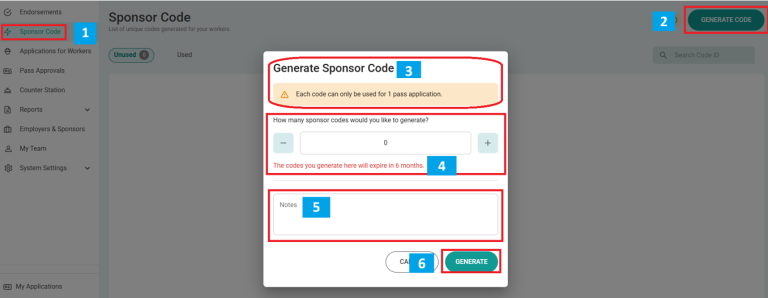
The system will generate unique Sponsor Codes, which you can then distribute to your employees, vendors or subcontractors.
Can Sponsor Codes be reused?
No. Each Sponsor Code is unique and can only be used once per application. Generated Sponsor Codes will expire six (6) months from the date they are generated.
How can an SCA submit applications for multiple applicants?
An SCA can submit multiple pass applications at once using the bulk application feature, provided that the applications have the same employer, purpose of entry, occupation code, and pass duration.
If employees have different purpose of entry, occupation codes, or pass durations, how should I submit the applications?
If employees have different employers, purposes of entry, occupation codes, or pass durations, you must submit separate bulk applications for each group.
Can an SCA amend an application after submission?
No. Once a bulk application has been submitted, the SCA cannot amend the applicant’s information.
Please ensure that all applicant details, including the employer, purpose of entry, occupation code and pass duration, are correct before submitting the application. If any information is incorrect, the SCA will need to submit a new application with the correct information. Any fees paid for the incorrect application will be forfeited.
Do individual applicants need to acknowledge and consent to the PDPA clause when I submit a bulk application?
Unlike the individual application process, bulk applications do not include a platform for individual applicants to directly acknowledge and consent to the Personal Data Protection Act (PDPA) clause.
By proceeding with the bulk application, you confirm that all individuals included have been informed of the PDPA clause and have provided the necessary consent.
I have submitted a bulk application on behalf of my employees, but they have not registered for an account. How do they log in?
A WhatsApp message will be sent to the registered mobile number provided in the bulk application.
As the SCA, please ensure that the mobile number, identification number, and date of birth are entered correctly. The login details will be as follows:
- USERNAME: Your mobile number (e.g. 98004500)
- PASSWORD: Jp@ + Your date of birth in DDMMYY format (e.g. 011260) + Last 4 Characters of your Government ID (NRIC, FIN or Passport) (e.g.123A).
Example: Jp@011260123A